

DNS Record Types Explained: A Beginner's Guide
DNS (Domain Name System) is like the internet's phonebook. It translates human-readable domain names (like google.com) into IP addresses (like 142.250
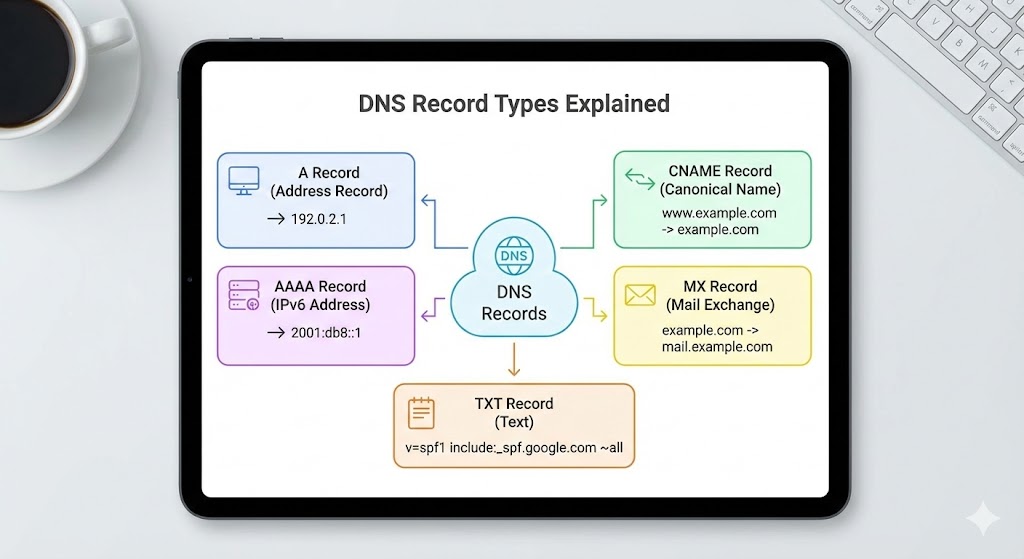
The Coffee Shop Story: Understanding DNS Through Real Life
Imagine you're new to a city and you want to visit "The Best Coffee Shop." You ask a local for directions, and they give you different types of information:
The exact street address: "123 Main Street"
A note that says: "It's the same place as The Awesome Café — they just rebranded"
Alternative directions: "If Main Street is closed, try the branch at 456 Oak Avenue"
Special instructions: "For deliveries, use the back entrance on Elm Street"
Verification info: "Yes, this is definitely the official Best Coffee Shop location, verified by the Chamber of Commerce"
DNS records work exactly like this — they provide different types of information to help internet traffic reach the right destination. Let's break down each type.
A Record (Address Record): The Street Address
What it does: Maps a domain name directly to an IPv4 address.
Real-world example:
example.com → 192.0.2.1
This is the most fundamental DNS record. When you type example.com in your browser, the A record tells your computer: "Go to IP address 192.0.2.1."
When you need it: Every website needs at least one A record to point to the server where it's hosted.
AAAA Record (Quad-A Record): The Modern Address
What it does: Maps a domain name to an IPv6 address (the newer internet protocol).
Real-world example:
example.com → 2001:0db8:85a3:0000:0000:8a2e:0370:7334
Think of IPv6 as the new postal code system because we're running out of IPv4 addresses. It's like upgrading from a 5-digit zip code to a 20-digit one because the city expanded too much.
When you need it: Modern websites use both A and AAAA records to support all types of internet connections.
CNAME Record (Canonical Name): The Alias
What it does: Points one domain name to another domain name.
Real-world example:
www.example.com  →  example.com
blog.example.com  →  example.com
Remember our coffee shop that rebranded? A CNAME is like saying "The Awesome Café and The Best Coffee Shop are the same place." When someone looks up www.example.com, the CNAME says "just go to example.com instead."
When you need it:
Pointing
www.yoursite.comtoyoursite.comCreating subdomains like
blog.yoursite.comorshop.yoursite.comWhen using third-party services (like hosting your blog on Medium but wanting it accessible via
blog.yoursite.com)
Important note: CNAME records can't coexist with other records at the same level. It's like saying "for all questions about this address, ask that other address instead."
MX Record (Mail Exchange): The Post Office
What it does: Directs email to the correct mail server.
Real-world example:
example.com  →  mail.example.com (Priority: 10)
example.com  →  backup-mail.example.com (Priority: 20)
When someone sends an email to you@example.com, the MX record tells the internet: "Deliver mail to mail.example.com. If that's down, try backup-mail.example.com."
The priority number (lower = higher priority) is like having a primary post office and a backup one.
When you need it: Setting up email for your domain with Gmail, Outlook, or custom email servers.
TXT Record (Text Record): The Verification Note
What it does: Stores text information for various purposes — mainly verification and security.
Real-world example:
example.com  →  "v=spf1 include:_spf.google.com ~all"
example.com  →  "google-site-verification=ABC123XYZ"
TXT records are like posting official notices. They're used for:
Email verification (SPF): "Only these mail servers are allowed to send email from our domain"
Domain ownership: "Yes, I own this domain" (used by Google, Facebook, etc.)
Security policies (DMARC): "Here's how to handle fake emails pretending to be from us"
When you need it:
Verifying domain ownership for Google Workspace, Microsoft 365
Setting up email security (SPF, DKIM, DMARC)
Integrating third-party services
NS Record (Name Server): The Information Desk
What it does: Specifies which servers are authoritative for your domain's DNS information.
Real-world example:
example.com  →  ns1.cloudflare.com
example.com  →  ns2.cloudflare.com
Think of NS records as the main information desk. They say: "For any questions about example.com, ask these specific name servers — they have the authoritative answers."
When you need it: When you change your DNS provider (like moving from GoDaddy to Cloudflare).
SOA Record (Start of Authority): The Boss
What it does: Contains administrative information about the domain, including the primary name server and domain administrator's email.
Real-world example:
Primary NS: ns1.example.com
Admin email: admin@example.com
Serial: 2024012501
Refresh: 7200
Retry: 3600
Expire: 1209600
TTL: 86400
SOA is like the master document that says: "This is the official authority for this domain, here's who's in charge, and here's how often to check for updates."
When you need it: This is automatically created when you set up a domain. You rarely need to modify it manually.
PTR Record (Pointer Record): The Reverse Lookup
What it does: The opposite of an A record — maps an IP address back to a domain name.
Real-world example:
192.0.2.1 → example.com
It's like reverse directory assistance. Instead of asking "What's the address for this name?" you're asking "What name belongs to this address?"
When you need it: Mainly for email servers. Many mail servers check PTR records to verify that emails are coming from legitimate servers and to reduce spam.
CAA Record (Certification Authority Authorization): The Security Guard
What it does: Specifies which certificate authorities (CAs) are allowed to issue SSL certificates for your domain.
Real-world example:
example.com  →  0 issue "letsencrypt.org"
example.com  →  0 issue "digicert.com"
This is a security feature that says: "Only these specific organizations can create SSL certificates for our domain." It prevents unauthorized certificate authorities from issuing certificates that could be used for phishing or man-in-the-middle attacks.
When you need it: For enhanced security, especially for organizations handling sensitive data.
How DNS Records Work Together: The Complete Picture
Let's say you're setting up a new website mybusiness.com. Here's what your DNS records might look like:
# Point domain to server
mybusiness.com         A      192.0.2.1
www.mybusiness.com     CNAME  mybusiness.com

# Set up email with Google Workspace
mybusiness.com         MX     1 aspmx.l.google.com
mybusiness.com         MX     5 alt1.aspmx.l.google.com

# Email security
mybusiness.com         TXT    "v=spf1 include:_spf.google.com ~all"

# Domain verification
mybusiness.com         TXT    "google-site-verification=ABC123"

# Name servers
mybusiness.com         NS     ns1.cloudflare.com
mybusiness.com         NS     ns2.cloudflare.com

# SSL certificate authority
mybusiness.com         CAA    0 issue "letsencrypt.org"
Each record type plays a specific role in making sure your website, email, and services work correctly.
Common Beginner Mistakes to Avoid
1. Forgetting the trailing dot: Some DNS systems require a trailing dot at the end of domain names (like example.com. instead of example.com). Check your DNS provider's documentation.
2. Setting a CNAME at the root domain: You can't use a CNAME for your root domain (like example.com). Use an A or AAAA record instead.
3. Not waiting for DNS propagation: DNS changes can take 24-48 hours to propagate worldwide. Be patient!
4. Mixing up A and CNAME records: Remember: A records point to IP addresses, CNAME records point to other domain names.
5. Forgetting to update email records: When moving to a new email provider, make sure to update both MX and TXT (SPF) records.
Quick Reference Table
| Record Type | Purpose | Example |
|---|---|---|
| A | Domain → IPv4 address | example.com → 192.0.2.1 |
| AAAA | Domain → IPv6 address | example.com → 2001:0db8::1 |
| CNAME | Domain → Another domain | www.example.com → example.com |
| MX | Email routing | example.com → mail.example.com |
| TXT | Text data & verification | "v=spf1 include:_spf.google.com" |
| NS | Authoritative name servers | ns1.cloudflare.com |
| PTR | IP → Domain (reverse) | 192.0.2.1 → example.com |
| SRV | Service location | _sip._tcp → server:port |
| CAA | SSL certificate authority | 0 issue "letsencrypt.org" |
Final Thoughts
Once you realize each record type has a specific job — just like different departments in a company — it all starts to make sense.
Start with the basics (A records and CNAMEs), then gradually explore others as your needs grow. Before you know it, you'll be managing DNS like a pro!
Pro tip: Most DNS providers have great documentation and visual interfaces that make managing these records much easier than editing them manually. Don't be afraid to experiment in a test environment — that's how you learn best.
Happy Coding !!
